Create Pool
Description
- The process of creating a question pool allows you to organize and manage questions which are related to a certain NCS.
- Question pools are essential for effective assessment and testing.
- In this guide, we will walk you through the steps involved in creating a question pool.
- There are 3 steps to create a new question pool.
Step 1: Selecting NCS Name, Code, Unit, Medium, and Description
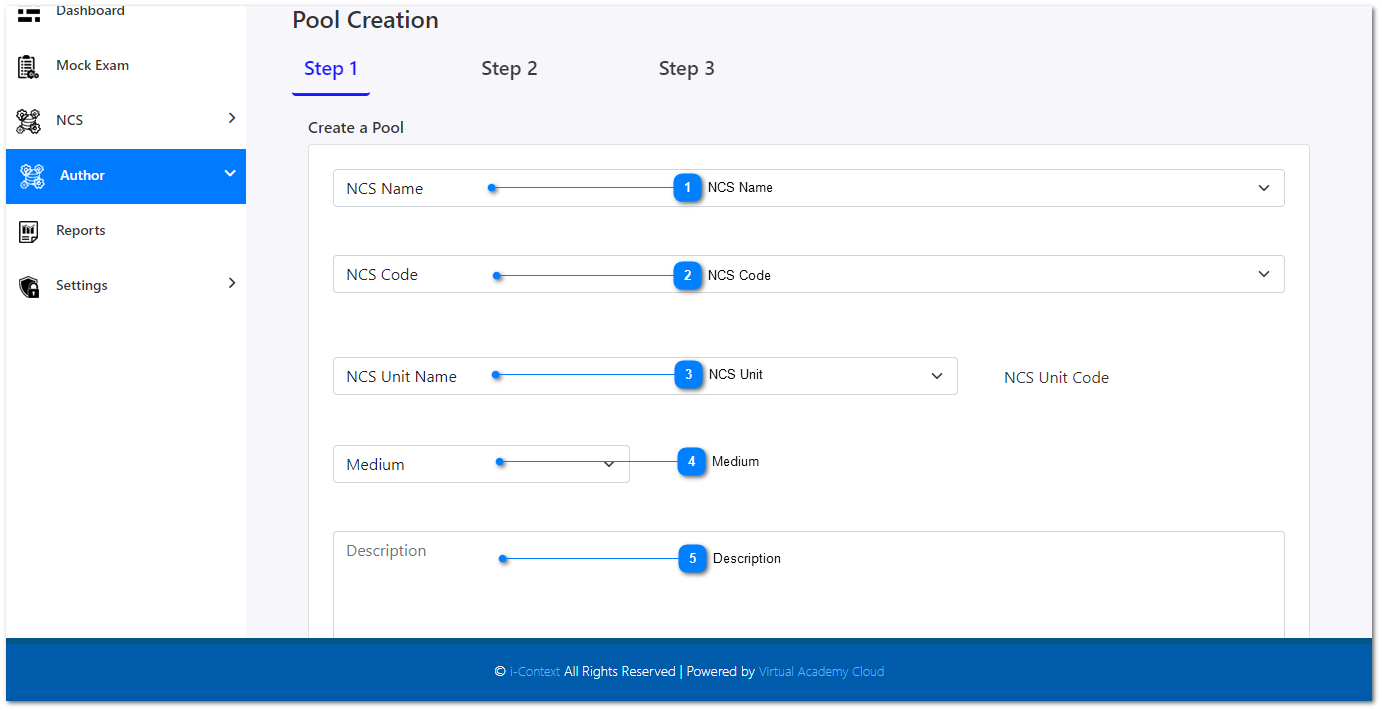
- From the given drop-down, you need to select the NCS Name that you are going to create the question pool for.
- Select the correct NCS Code here.
- Select the correct NCS Unit Name here.
- Select in which language this question pool will be created.
- Here you can enter a proper description about the question pool that's about to create. Provide a description that accurately represents the content and purpose of the question pool.
- Optionally, you can upload a thumbnail image that visually represents the question pool as well.
- After entering all these details, click on the "Create Pool" button at the end of the page to move on to the next step.
Step 2: Selecting Question Types and Creating Questions
- After completing Step 1, you will proceed to the second step.
- In this step, you can select various question types for your question pool.
- Choose the appropriate question types based on the assessment needs.
- For each question type, create new questions by following the provided guidelines or prompts.
- Make sure to include the correct answers for each question.
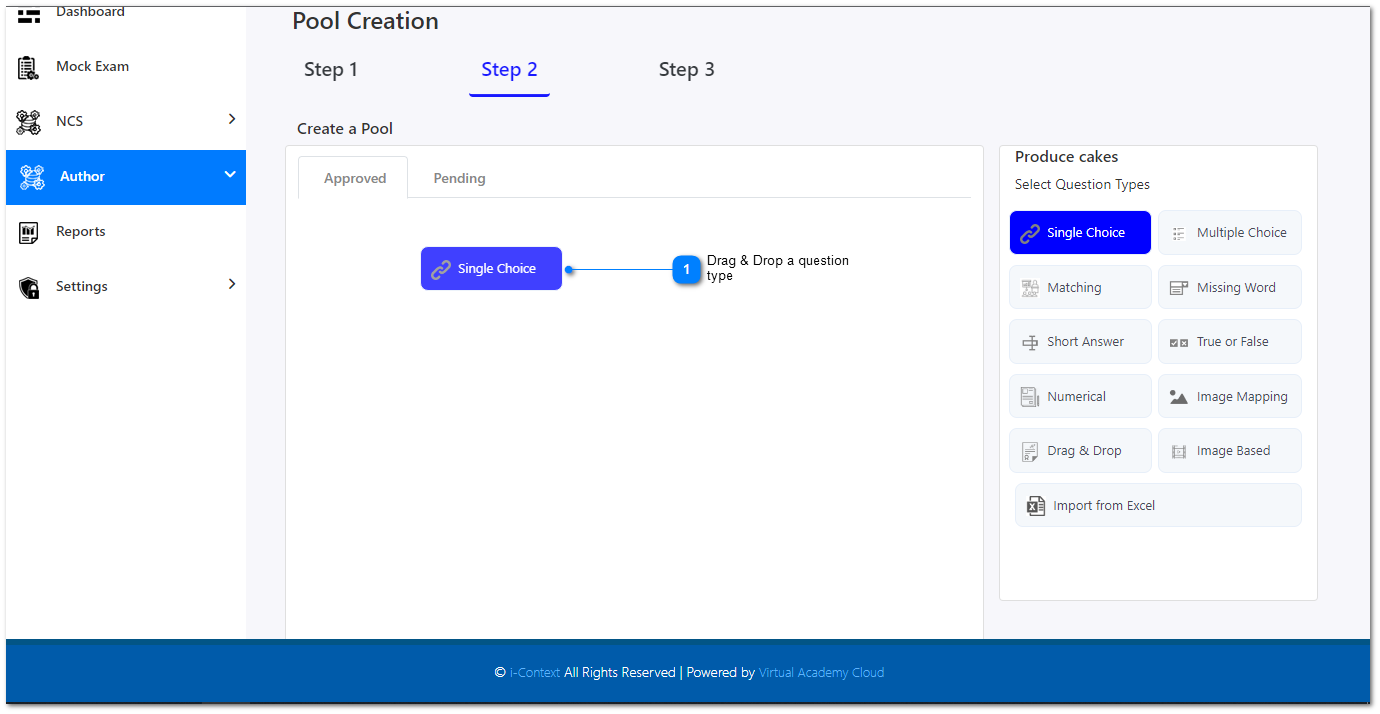
- From the right side question types, select a relevant question type and drag & drop that into the approved or pending section.
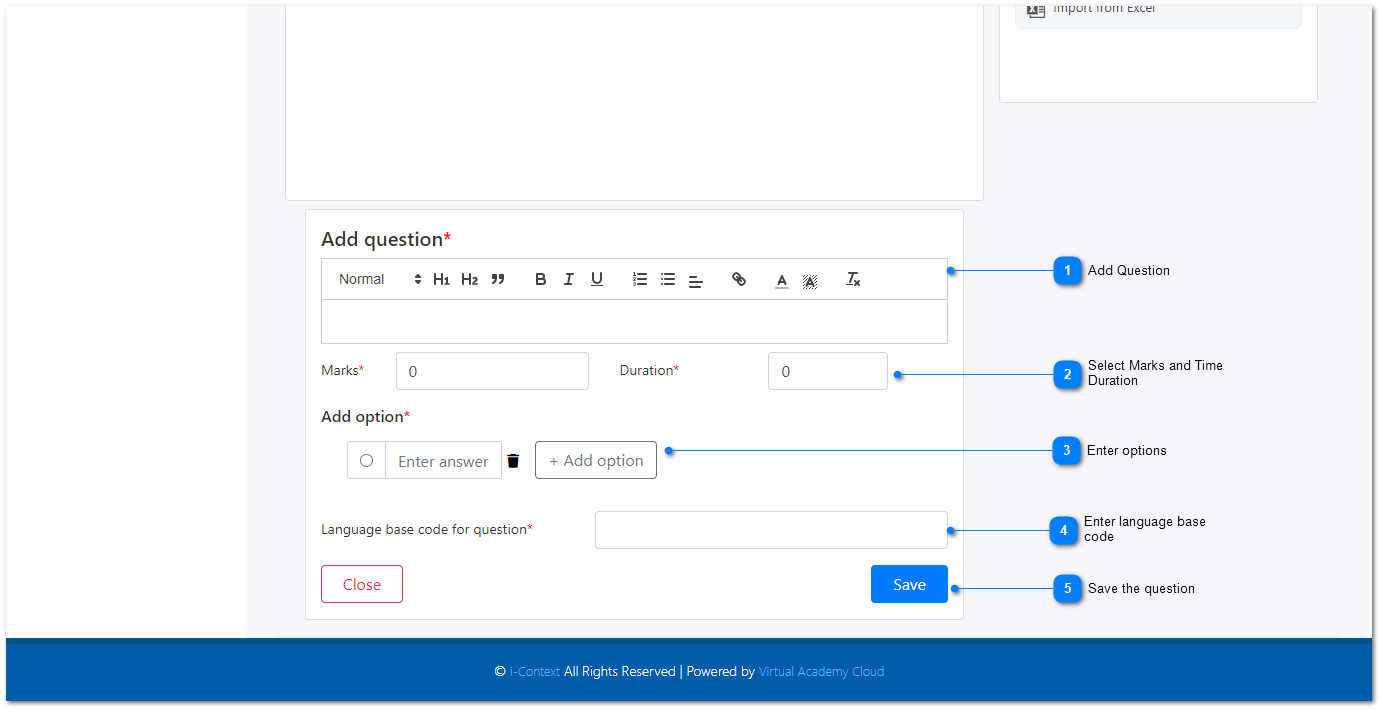
- Here type the question by selecting various text formats.
- Enter how many marks will be allocated for this particular questions and how much time duration it will be reserved.
- In this example, we have selected the single choice question type. So, in here we need to enter one by one all the answer options that we provide.
- Enter language base code for the question
- After entering all the above mentioned details, you can save this question to your new question pool.
Likewise, you can select the most appropriate question type for each question in the pool.
Step 3: Previewing and Publishing the Question Pool
- If minimum number of questions required (4 questions) are created, click on "Create Pool" button at the end of the page.
- Then you will be redirected to the step 03.
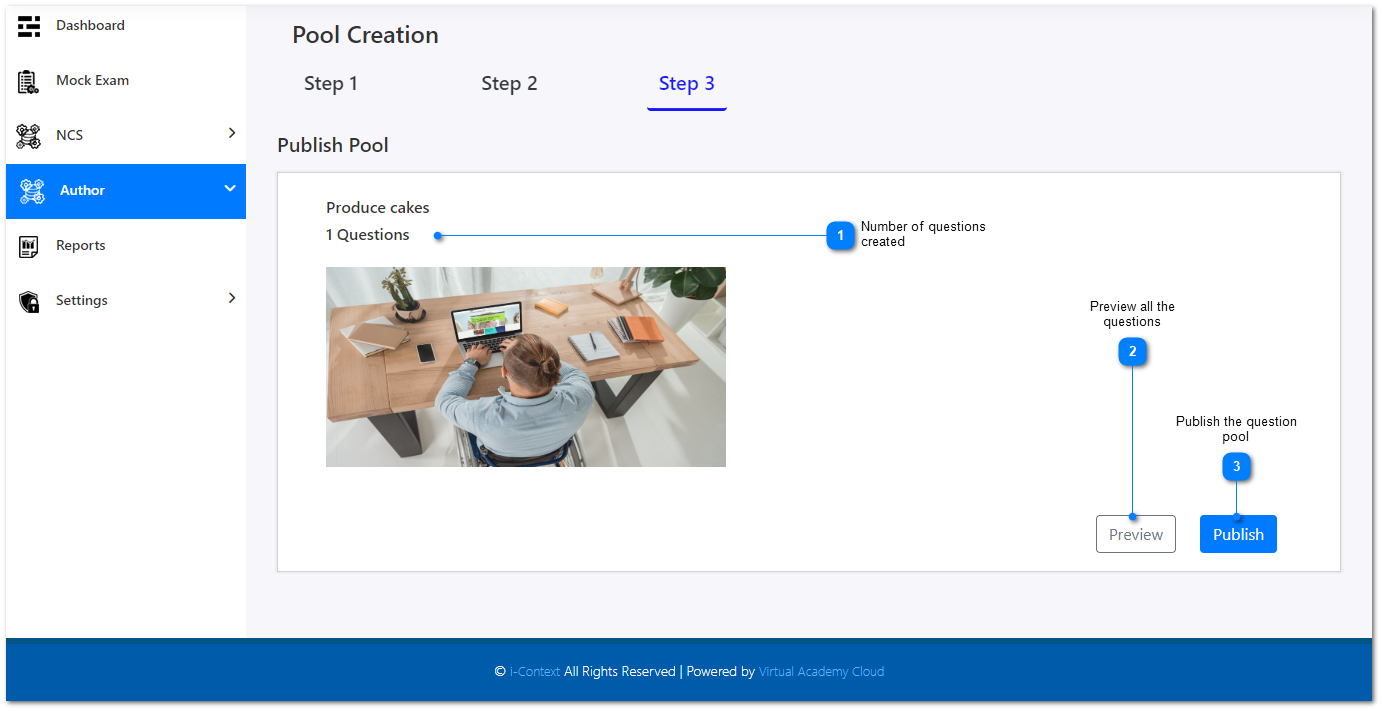
- Here you can check if all the questions you just created are saved properly.
- You can preview all the questions and see the way how the users will attempt the questions.
- If you are satisfied with the preview you can publish the new question pool just created.