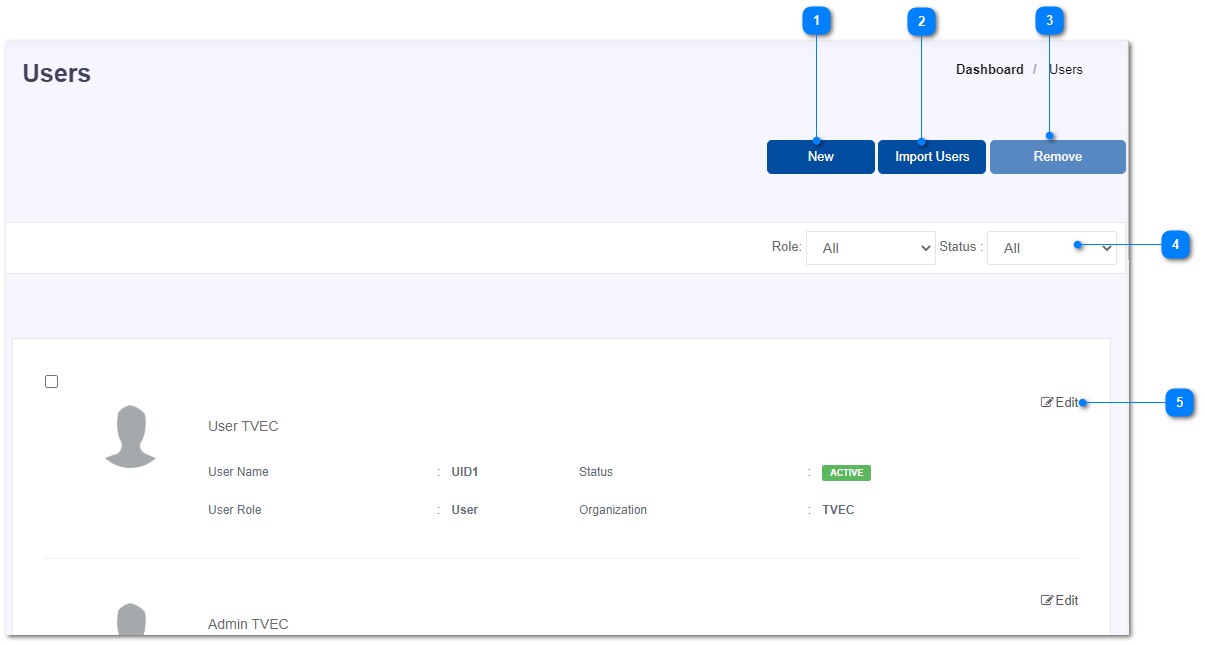
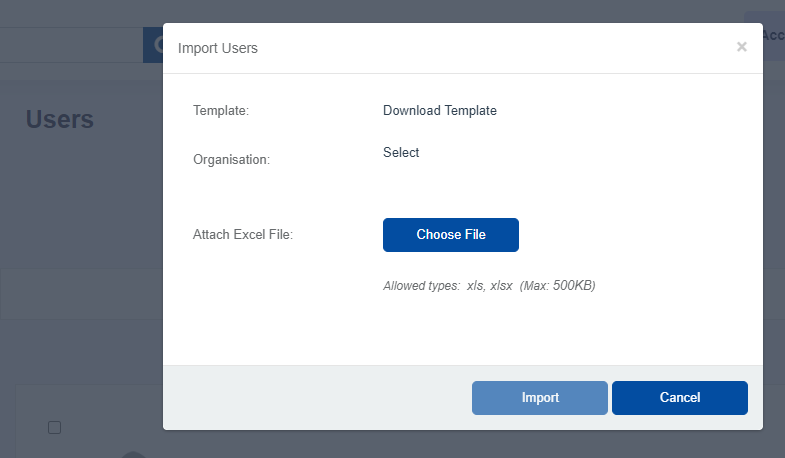
Instead of adding new users one by one, you can import couple of users by clicking on this button. Following pop-up would be displayed.
Firstly you can download the template and create a similar file (in .xls or .xlsx file formats) with user details that you want to add into the system.
Then select the organization that you want to import the users into and upload the file you just created.
Click Import button to add the users.
Mark the check box which in-front of the user that you want to remove from the system and click on Remove button.
Filter the users list down below based on the user role (user, supervisor, invigilator, admin, etc.) and the status (active, inactive, or deleted).
Click on this edit button in-front of the user that you want to update the details of and it will open a pop-up exactly similar to the create user one. Then edit the details that you want to update and click on the Update button to save the changes.