Mega Testing Platform
Create Mock Exam
Description
- There are 3 steps to create a new mock exam.
Step 1: Adding NCS Name, Code, Exam Title, Medium, and Description
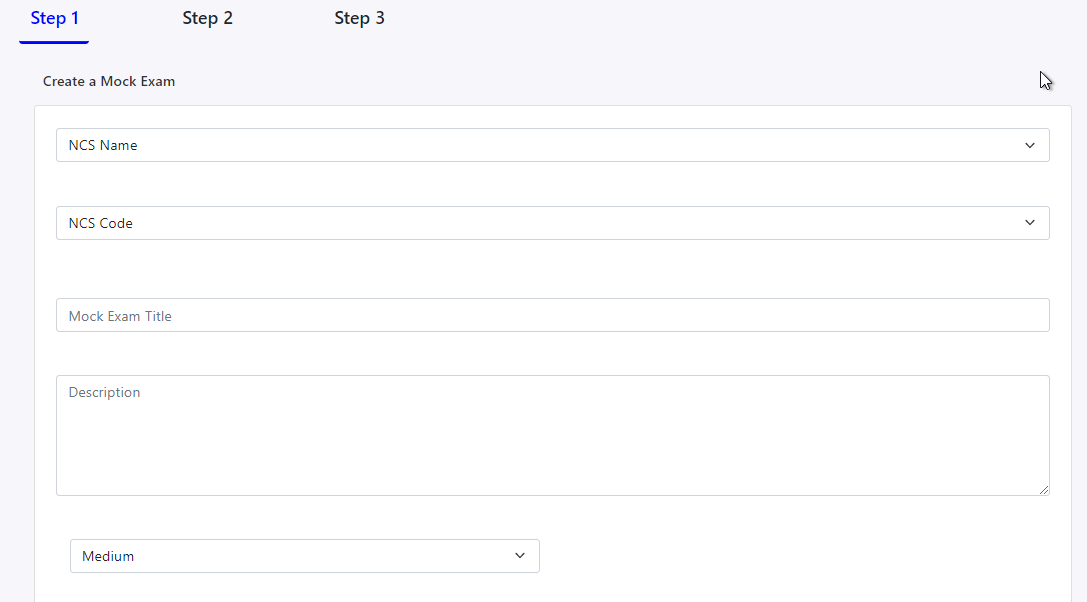
- In this step, you need to select which NCS will be related to this mock exam and enter that NCS name and code.
- Then you need to enter a unique mock exam title and a proper description with the language medium.
- Optionally, you can upload an image as the thumbnail of this mock exam at the end of this form as well.
- After entering all these data click on Create Mock Exam button at the end of this page to move on to the next step.
Step 2: Selecting Questions from Available Question Pools
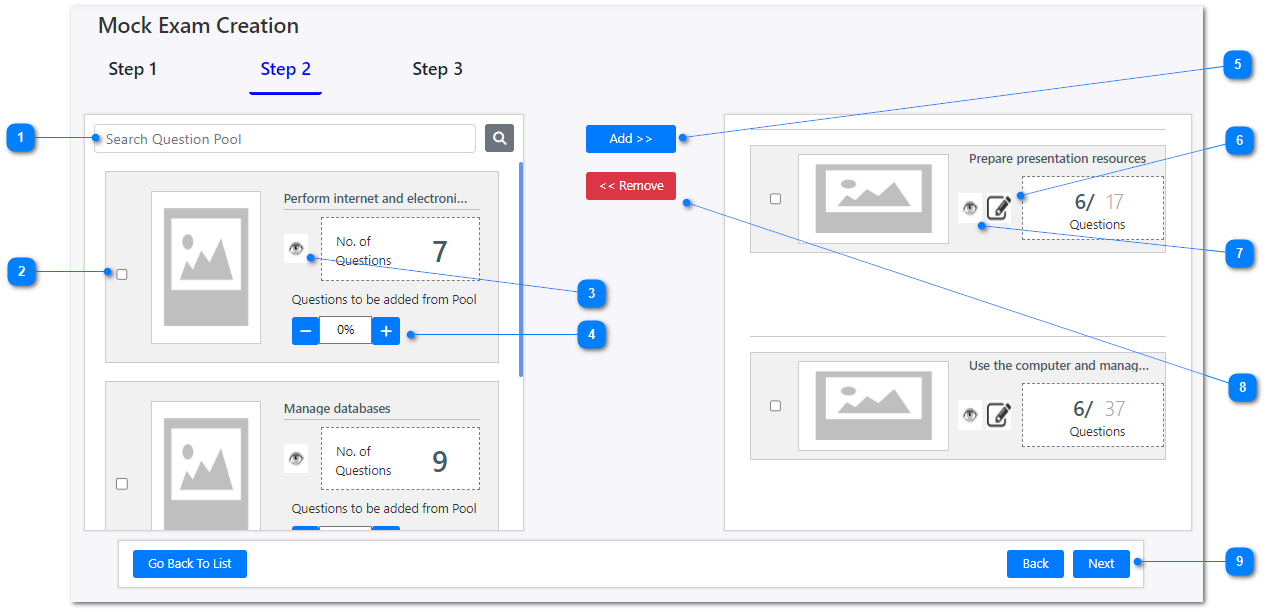
- Filter the question pools list by entering a question pool name.
- Selecting a particular question pool.
- Preview all the questions in that pool.
- Change the number of questions that are about to add from this pool.
- Click on Add button to add the selected question pool to the new mock exam.
- Edit the number of questions that are added from this question pool into the exam.
- Preview all the selected questions from this question pool.
- Select a question set from the right side and click on Remove button to remove all the questions from that question pool that are selected.
- If you finalize all the questions that are about to add into this new mock exam, click on Next button to move on to the next step.
Step 3: Preview, Save or Publish
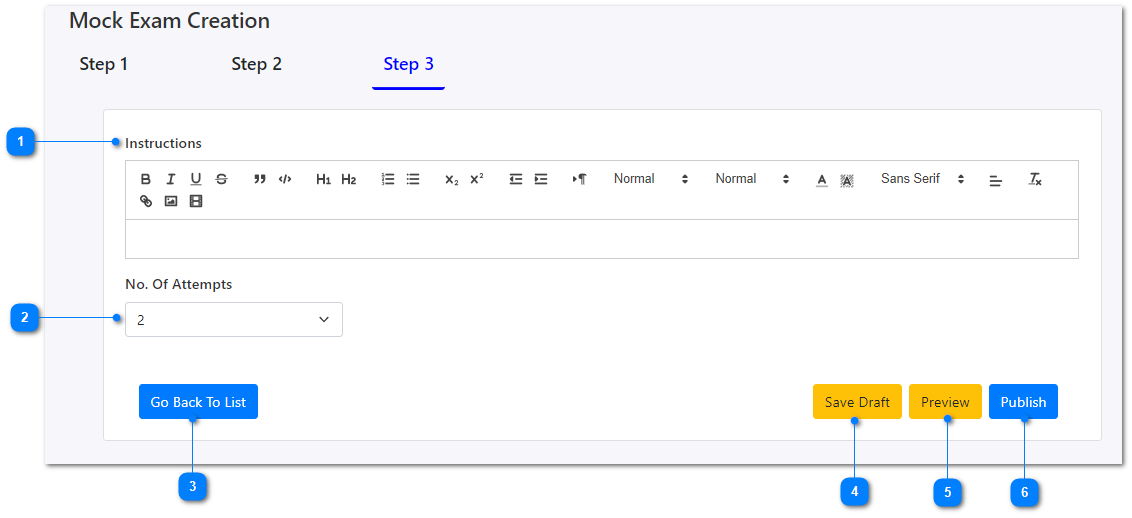
- Add instructions to this exam.
- Add number of attempts that a user can have.
- Click on this button to go back to the list of all the mock exams available.
- Click here to save this mock exam as a draft.
- Click here to see the preview of the mock exam to verify that all the necessary questions are added to the exam.
- At the end, if you are satisfied with the preview you can publish the newly created mock exam.